Target Weight and Traffic Distribution
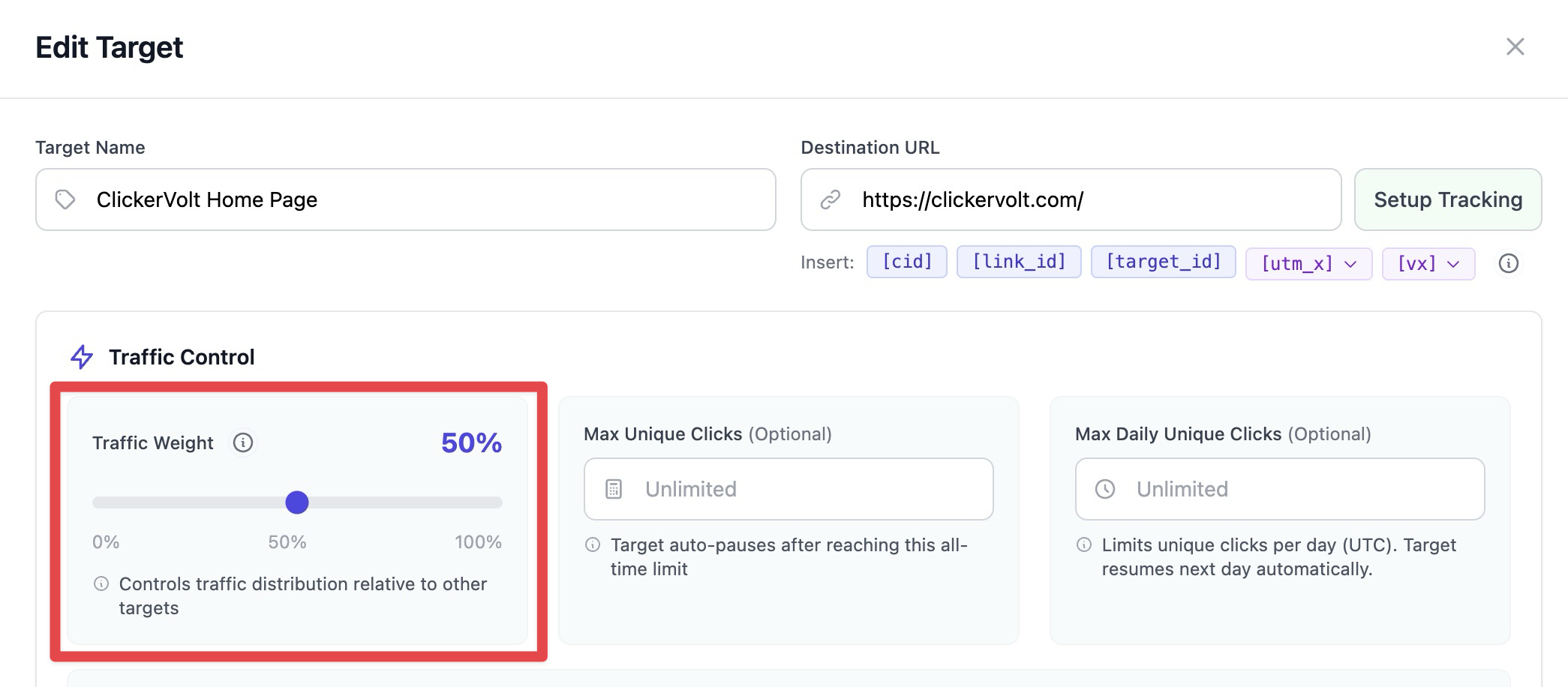
Target weights control how traffic is distributed across multiple targets in weighted rotation algorithms.
Understanding Weights
Weight is a numeric value (0-100) that determines what percentage of traffic each target receives. A weight of 0 effectively pauses the target (same as setting status to paused).
The formula:
Target Traffic % = (Target Weight ÷ Total Weight) × 100
Weight Examples
Example 1: Equal Split
- Target A: Weight 50 (50/100 = 50%)
- Target B: Weight 50 (50/100 = 50%)
Example 2: Equal Split 2
- Target A: Weight 100 (100/200 = 50%)
- Target B: Weight 100 (100/200 = 50%)
Example 3: Unequal Split
- Target A: Weight 100 (100/150 = 66.7%)
- Target B: Weight 50 (50/150 = 33.3%)
Example 4: Three-Way Split
- Target A: Weight 50 (50/150 = 33.3%)
- Target B: Weight 50 (50/150 = 33.3%)
- Target C: Weight 50 (50/150 = 33.3%)
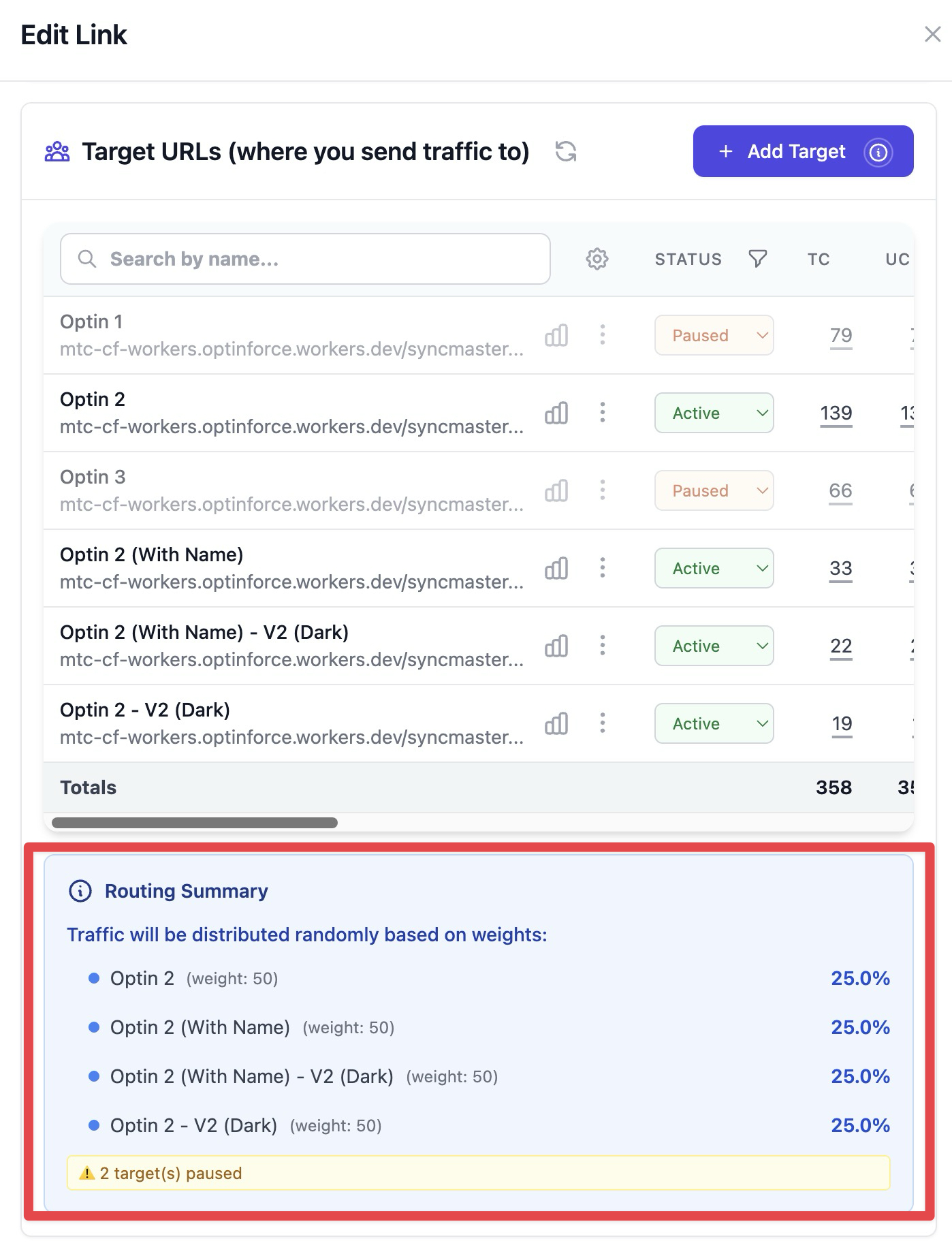
The Link Form shows a routing summary of traffic to your targets, based on the Routing Algorithm you have selected and the Weights assigned to your targets:
Changing Weights
To adjust traffic distribution:
- Edit the link
- Edit each target you want to modify
- Change the weight value
- Save each target
Changes take effect immediately for all new clicks.
Weight Best Practices
Use Round Numbers
Weights of 100, 200, 300 are easier to understand than 137, 284, 419. The actual numbers don't matter, only the ratio.
Start Equal
Begin split tests with equal weights. Adjust based on performance data after collecting sufficient clicks.
Don't Micromanage
Small weight differences (like 100 vs 105) won't produce meaningful distribution changes. Make significant adjustments.
Consider Statistical Significance
Wait for at least 100-200 clicks per target before adjusting weights based on performance.
When Weights Don't Apply
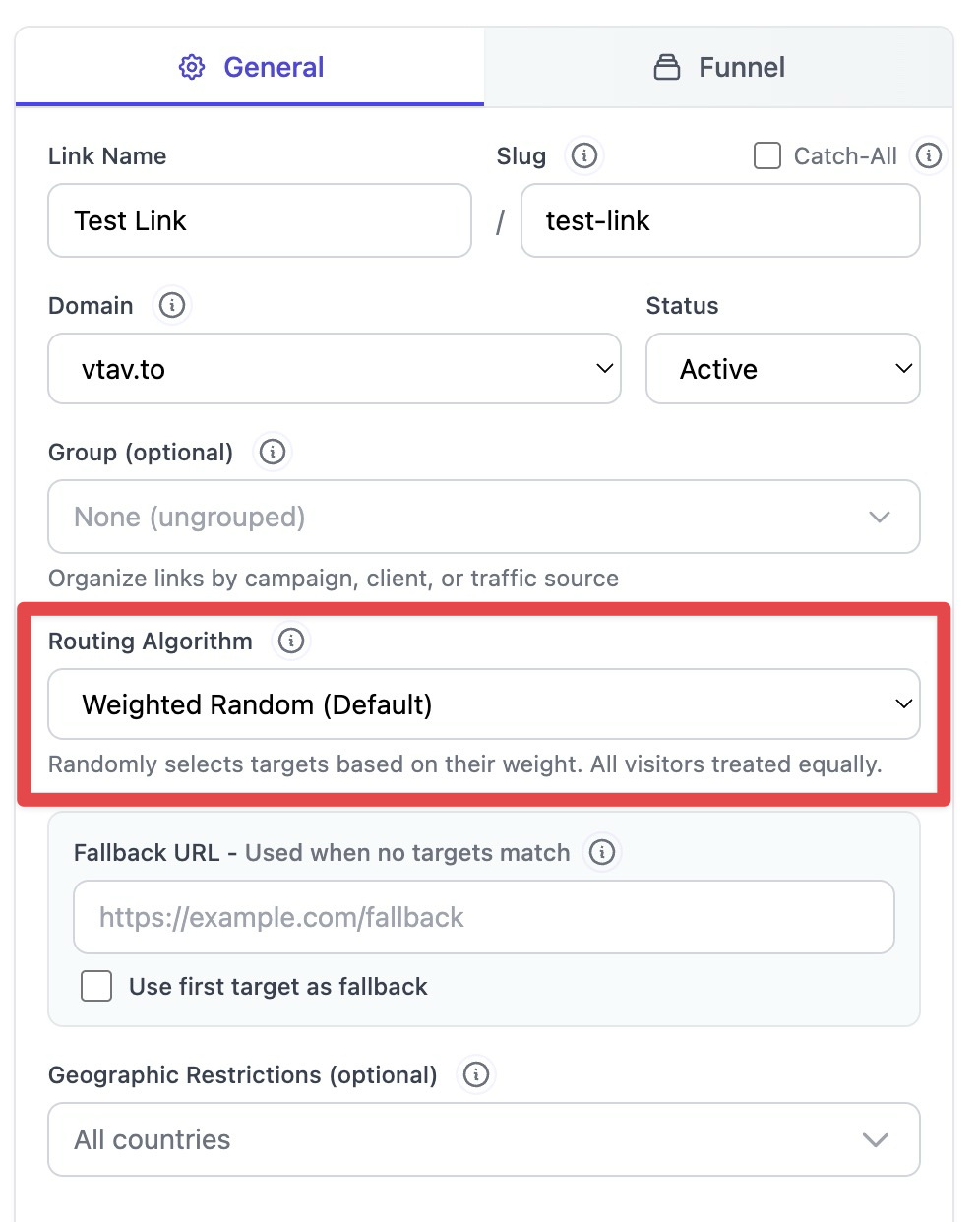
Weights only affect these rotation algorithms:
- Weighted Random
- Only Uniques
Weights are ignored in:
- Sequential (uses order, not weights)
- Sequential Unique (uses order, not weights)
- Progressive Exposure (uses configured progression)
Advanced Topics
Dynamic Weight Optimization
Monitor conversion rates and adjust weights to send more traffic to better-performing targets while keeping losing variants in rotation for continued testing.
Weight and Geo-Filtering
When using geo-filtering, weights only apply to eligible targets for each visitor. If only one target matches a visitor geo-filter, that target receives 100% regardless of weight.
Weight Limits
Weight values range from 0 to 100. A weight of 0 effectively pauses the target without changing its status. Large differences (e.g., 5 vs 100) can make targets with low weights receive very little traffic.